
Wallet

Before using Permapod, you need a wallet that supports ZIG Chain. You can use a Cosmos wallet such as Keplr, or MetaMask.
Supported Wallets
| Wallet | Type | Link |
|---|---|---|
| Keplr | Browser extension + mobile (Cosmos) | keplr.app |
| Cosmostation | Browser extension (Cosmos) | cosmostation.io |
| MetaMask | Browser extension (EVM) | metamask.io |
Step 1 / Install Your Wallet
Download and install one of the supported wallets from the links above. Follow the wallet's official setup to create or import an account.
Keplr is the most widely used Cosmos wallet and works well with Permapod. Using MetaMask? Follow the MetaMask guide.
Keplr and MetaMask give different addresses, even from the same recovery phrase. Positions opened with one wallet don't appear in the other. See Keplr and MetaMask are separate accounts.
Step 2 — Connect to ZIG Chain
ZIG Chain is typically detected automatically when you visit the app. If it isn't:
- Open your wallet settings.
- Select Add Custom Chain (or equivalent).
- Enter the ZIG Chain network details from the official documentation.
- Save and switch to the ZIG Chain network.
With MetaMask, Permapod adds the network for you when you connect.
Step 3 — Connect to PermaPod
- Go to app.permapod.xyz.
- Click Connect Wallet in the top-right corner.

The header bar with the Connect Wallet button
- Select your wallet (Keplr, Cosmostation or MetaMask).
- Approve the connection request in your wallet popup.
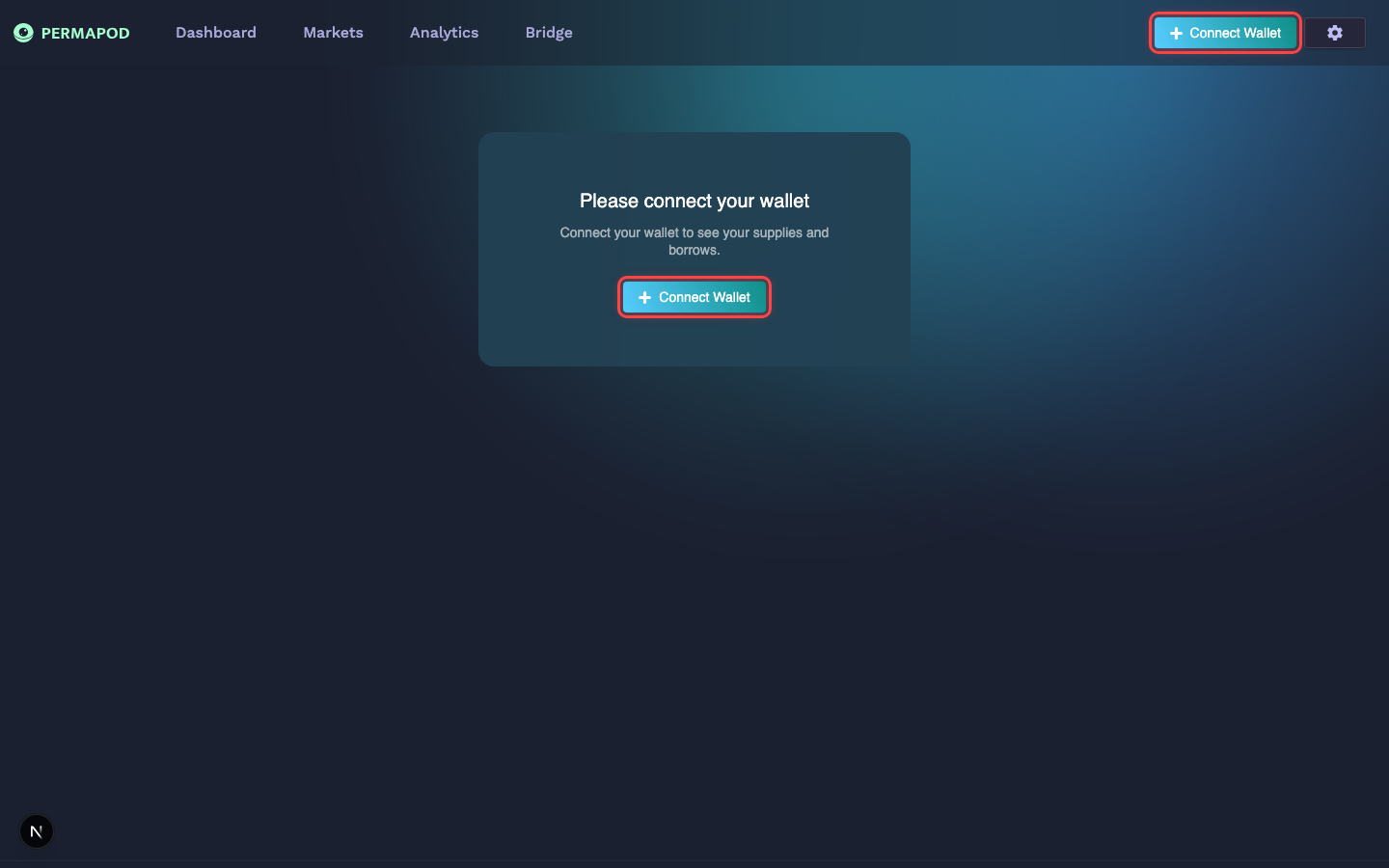
Dashboard before connecting — click Connect Wallet to get started
Step 4 — Create Your Account
On your first visit, Permapod will prompt you to create a credit account. This is a one-time on-chain transaction that creates your account.
Your wallet needs a little ZIG to pay the fee. If it's empty, Permapod shows Add ZIG to start with your address. Send some ZIG to it and setup continues on its own.
- Click Approve transaction when prompted.
- Confirm the transaction in your wallet.
- Once confirmed, you'll land on the Dashboard — ready to go.
Next step: Transfer Assets to fund your wallet with tokens.